Circles are the foundation of countless pixel art designs in Minecraft, from simple smiley faces to elaborate planetary scenes visible from map views. Whether you're decorating your base with a giant moon, creating floor mosaics, or building massive art installations, mastering circular pixel art opens up a world of creative possibilities.
In this guide, we'll explore the techniques, block choices, and creative strategies that will help you create stunning circular pixel art in Minecraft. Combined with our circle generator tool, you'll be able to bring any circular design to life.
Why Circles Are Essential for Pixel Art
While Minecraft is inherently a world of squares and cubes, circles add a dynamic quality that makes pixel art feel more complete and polished. Circles create:
- Natural shapes: Suns, moons, planets, eyes, and heads all require circles
- Visual contrast: Curved elements stand out against the blocky environment
- Professional quality: Well-executed circles elevate pixel art from amateur to impressive
- Design flexibility: Circles serve as the base for many complex shapes
💡 Did You Know?
Large circular pixel art visible from Minecraft's map view has become a popular way for servers to display logos and landmarks. Some of these map art circles span over 100 blocks in diameter!
Understanding Pixel Art Circle Sizes
The size of your circle dramatically affects how "smooth" it appears. Here's a quick reference for choosing the right size based on your needs:
| Circle Size | Appearance | Best Used For |
|---|---|---|
| 5-8 blocks | Very angular, obvious steps | Small icons, button designs, tiny details |
| 9-15 blocks | Identifiable circles with visible pixels | Character eyes, small decorations, emblems |
| 16-30 blocks | Smooth curves, classic pixel art look | Pixel art portraits, logos, floor designs |
| 31-64 blocks | Very smooth, detailed curves | Large murals, map art, building decorations |
| 65+ blocks | Nearly perfect circles | Map art visible from maximum zoom, massive installations |
Pixel Art Circle Techniques
Solid fill circles are exactly what they sound like—circles completely filled with blocks. This is the foundation technique for creating solid shapes like moons, planets, and colored disc designs.
Use our generator with the "Filled" option enabled to get the complete pattern. For multi-colored circles (like a planet with rings), generate multiple filled circles at different sizes and layer them.
💡 Tips
- Use concrete blocks for vibrant, consistent colors
- Plan your color palette before building
- Build from the center outward for easier alignment
Outline circles create just the border of a circle without filling the interior. These are essential for creating rings, halos, borders around other pixel art, and as guidelines for more complex designs.
Keep the "Filled" option disabled in our generator. Adjust the thickness setting to create thicker or thinner outlines based on your design needs.
💡 Tips
- Thickness of 1 works best for small circles (under 15 blocks)
- Use thickness 2-3 for larger circles to maintain visual balance
- Combine multiple outline circles for ripple effects
Concentric circles are multiple circles of different sizes sharing the same center point. This technique creates targets, bullseyes, rainbow patterns, and Saturn-style planets with rings.
Generate circles at progressively smaller sizes (e.g., 40, 30, 20, 10) and build them on top of each other. Start with the largest circle first, then fill in the smaller ones with different colors.
💡 Tips
- Plan ring widths beforehand—typically 3-5 blocks between each ring looks best
- Use contrasting colors for adjacent rings
- The Force Odd setting helps maintain a true center across all circles
Not every circular element needs to be complete. Crescent moons, pie slices, and curved arcs all require partial circle techniques. These are created by overlapping two circles and only building specific sections.
For a crescent moon, generate two filled circles of slightly different sizes, then only build the non-overlapping portion of the larger circle. Position the smaller circle slightly offset from the larger one.
💡 Tips
- Sketch your design on paper first to plan circle overlaps
- Use a different colored temporary block to mark the "cut" area
- The oval shape can help create more dramatic crescents
Create Your Circle Pattern Now
Use our free generator to get the perfect circle template for your pixel art project.
Open Circle Generator
Best Blocks for Circular Pixel Art
Block choice significantly impacts the final look of your pixel art. Here are the best options for different use cases:
Concrete (All 16 Colors)
Concrete is the gold standard for pixel art. The smooth, matte texture has no visible grain, meaning colors appear solid and consistent even in large areas. The 16 vibrant colors cover most pixel art needs.
Wool
Wool offers the same 16 colors as concrete but with a softer appearance. It's easier to gather in survival mode (especially with a sheep farm) and works well when you want a slightly textured look.
Terracotta
Terracotta provides warm, earthy tones that are perfect for landscapes, portraits, and nature-themed pixel art. The colors are more muted than concrete, which can create a more natural aesthetic.
💡 Pro Tip
For the most vibrant results, stick to one block type throughout your pixel art. Mixing concrete with wool, for example, creates inconsistent textures that can be distracting in finished pieces.
Glass and Stained Glass
Glass works uniquely in pixel art—it allows light through and can create interesting overlay effects when layered. Stained glass adds color while maintaining some transparency, useful for sun rays or magical effects.
Pixel Art Circle Project Ideas
1. A Giant Moon
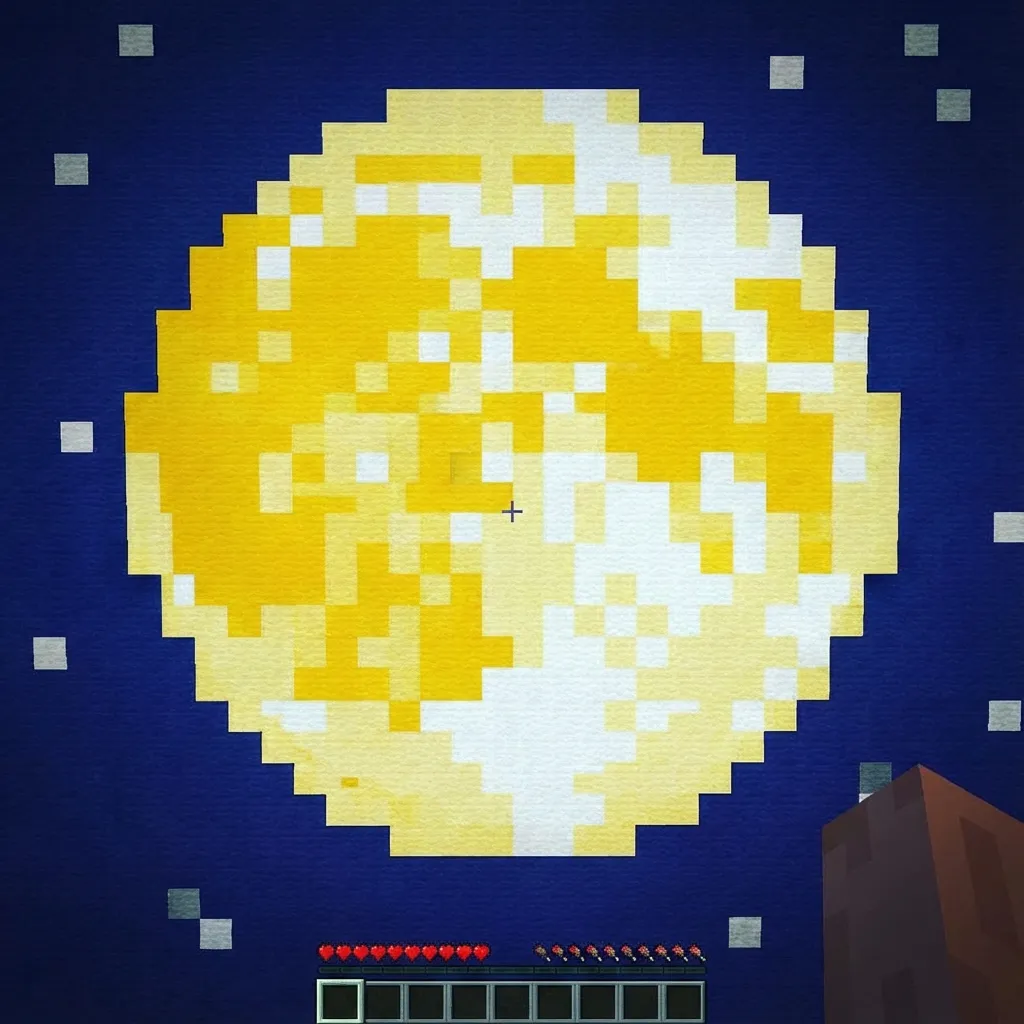
Create a massive crescent or full moon using white and light gray concrete. Add a few dark gray "craters" for realism. A 50-block diameter moon makes a stunning feature on any server.
2. Planet with Rings
Build a filled circle for the planet body, then add concentric outline circles with different thicknesses and angles for the rings. Use orange and brown tones for a Saturn-inspired look.
3. Floor Mosaic
Create a decorative floor using multiple overlapping circles in various colors. This works beautifully in plaza areas, throne rooms, or temple floors.
4. Character Eyes
For pixel art portraits, eyes are crucial. Use a small filled white circle for the eye white, a smaller colored circle for the iris, and an even smaller black circle for the pupil. A 9-11 block outer circle works well for most portrait scales.
5. Logo Recreation
Many logos incorporate circles. Use our generator to recreate brand logos, sports team emblems, or create your own server logo. Map art at Y-level 127 makes logos visible from the map view.
Common Mistakes to Avoid
- Using too small a circle: Circles under 7 blocks look very angular. Scale up if you want recognizable curves.
- Ignoring the center point: Always establish your center before building. Losing track of center throws off the entire piece.
- Mixing block textures: As mentioned, stick to one block type for consistent appearance.
- Not stepping back to check: Periodically move away from your build to see the full picture. What looks right up close may seem off from a distance.
Taking Your Pixel Art Further
Once you've mastered circular pixel art, you're ready for more advanced techniques. Consider exploring:
- Building 3D spheres using stacked circles
- Creating dithered gradients within your circles for smooth color transitions
- Combining circles with ovals for more organic shapes
- Using the star shape option for decorative accents
The key to great pixel art is practice. Start with simple single-color circles, then gradually tackle more complex multi-element designs. Before long, you'll be creating impressive circular pixel art that becomes the centerpiece of your Minecraft world!
Start Your Pixel Art Project
Generate the perfect circle patterns for your next masterpiece.
Open Circle Generator